How to require approval for new clients
Requirements
- Available on: All plans
- Device access: Web & mobile browser
- Permission: Owner or Manager
Add a layer of review for first-time clients: when this is on, a new client's online booking stays pending until you confirm it, so a brand-new name never auto-fills your chair without a quick look.
How it works
- A booking from a first-time client is created with a Requested status instead of Confirmed.
- The time slot is held while it waits, but the appointment isn't final until you approve it.
- Returning clients are unaffected — their bookings confirm normally.
How to turn on new-client approval
-
In the left menu, open Settings, then select the Booking tab.
<!-- CAPTURE: route=/settings | login=owner | state=Booking tab open | highlight=Booking tab | viewport=1440x900 -->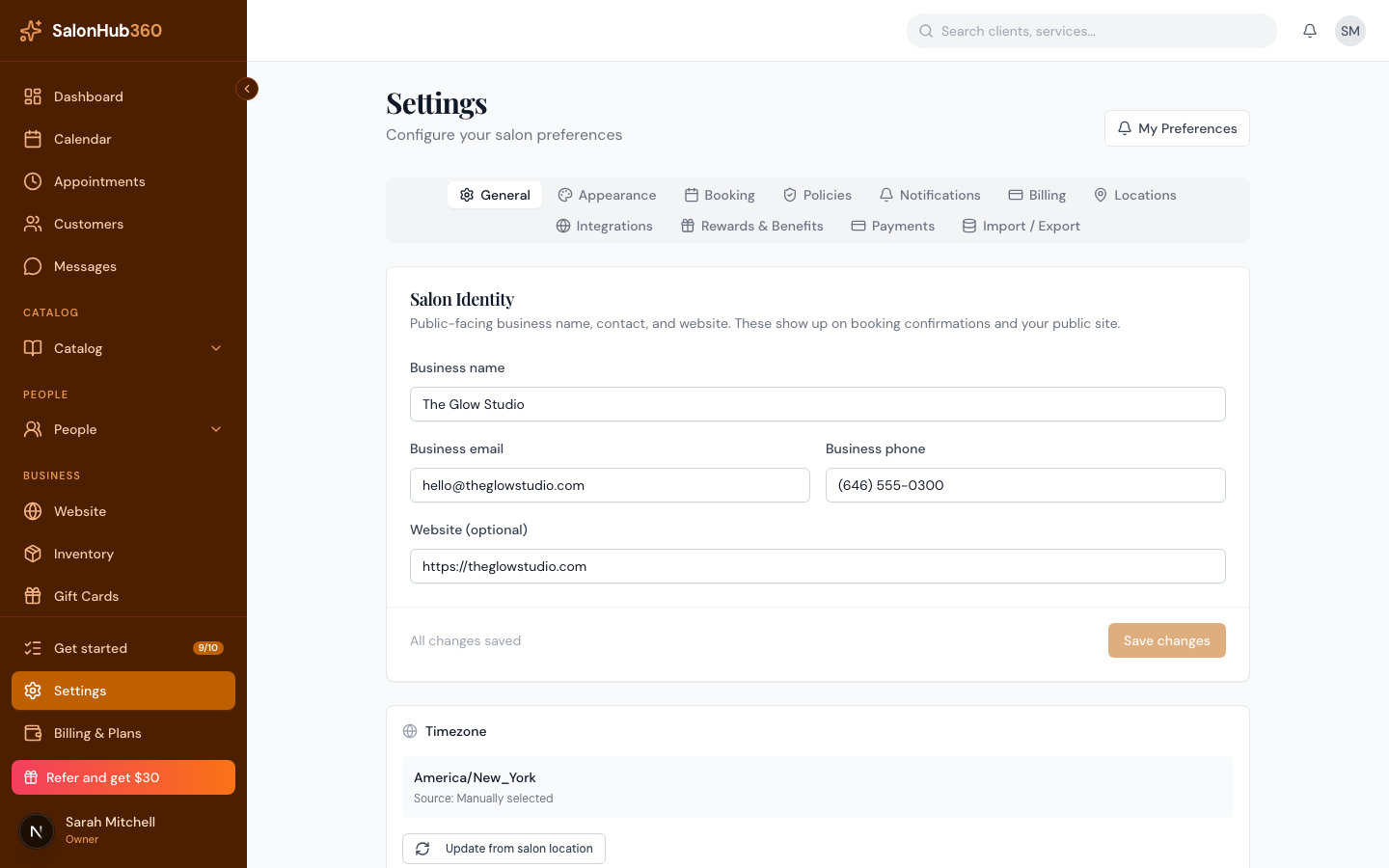
-
In the Booking rules card, turn on Require approval for new clients.
<!-- CAPTURE: route=/settings | login=owner | state=Booking tab, Require approval for new clients ON | highlight=Require approval for new clients toggle | viewport=1440x900 -->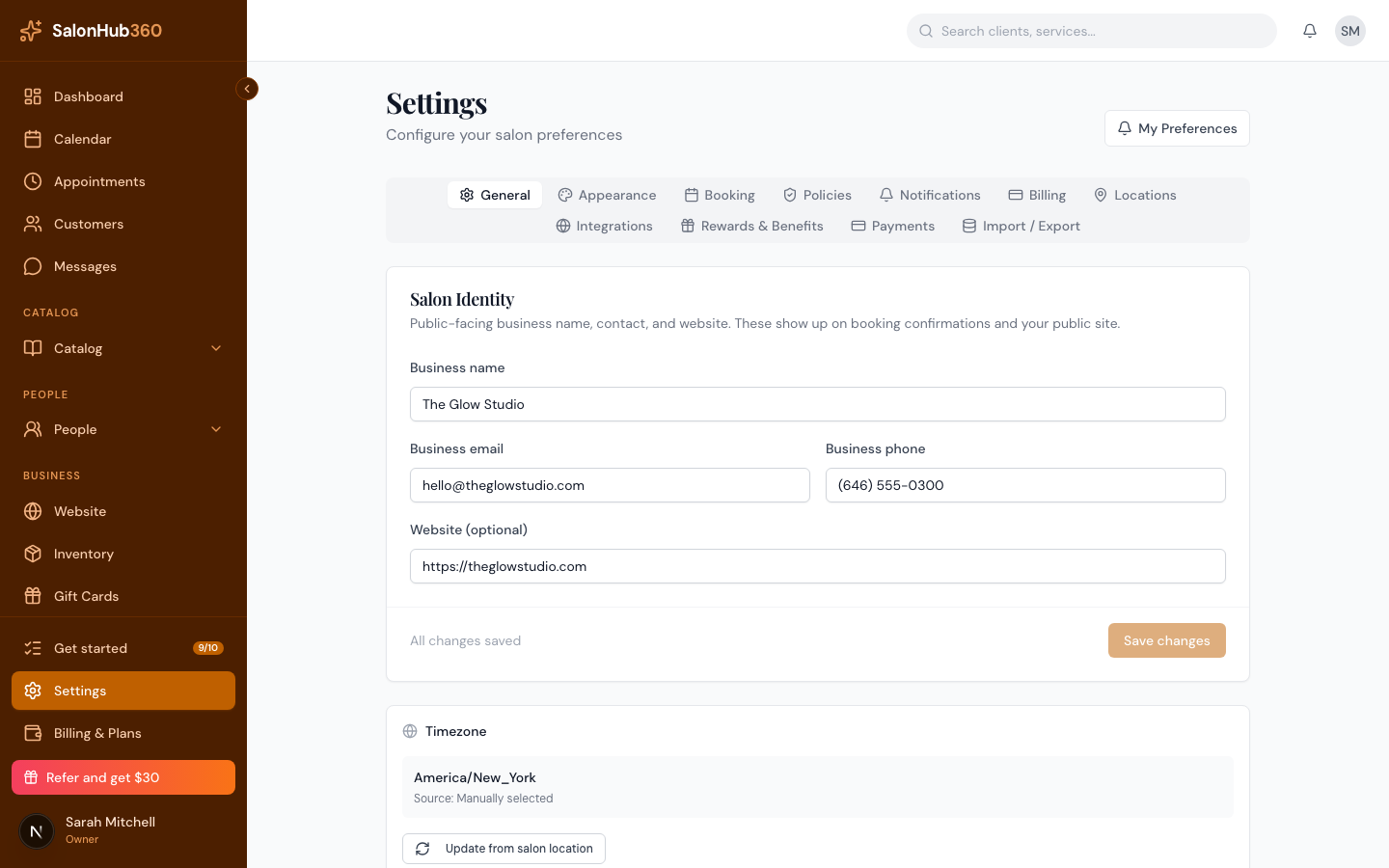
-
Click Save changes.
What the client sees
During checkout, your booking page tells new clients that their booking may require approval by the salon before confirmation — so the wait is no surprise. After they tap Confirm Booking, they still get a Booking Received screen; their appointment simply waits in Requested for you to confirm.
Note: Approve or decline requested appointments from your Calendar or Appointments list, where they appear with a Requested status. Confirming them turns them into regular appointments.
Tip: Leaving this off means every online booking confirms instantly. Turn it on only if you want to vet new clients first.
Related articles