How to turn on online booking & set your rules
Requirements
- Available on: All plans
- Device access: Web & mobile browser
- Permission: Owner or Manager
Switch on your public booking page and set the rules that decide when and how far ahead clients can book — so self-service bookings always fit your schedule.
How to turn on online booking
-
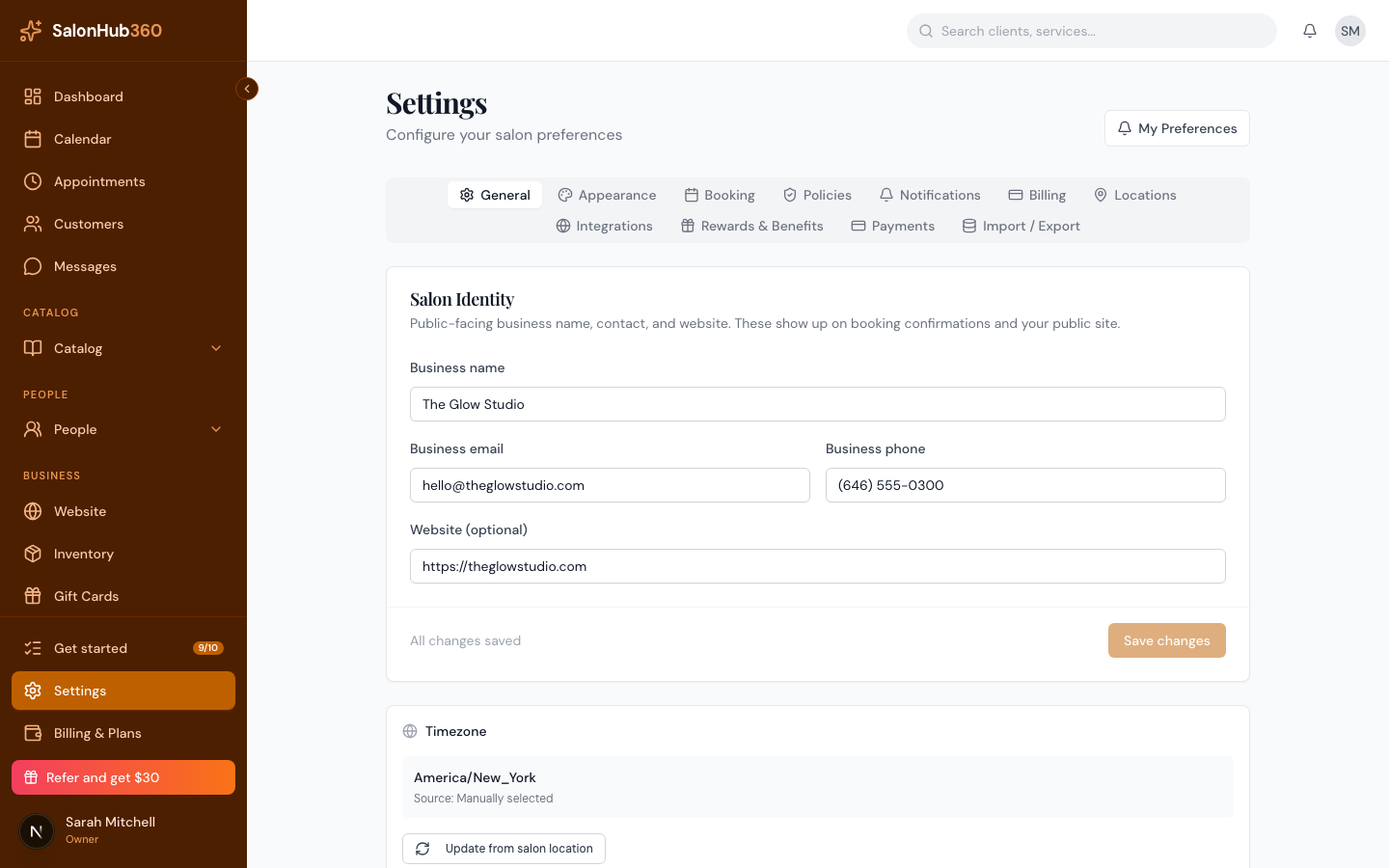
In the left menu, open Settings, then select the Booking tab.
-
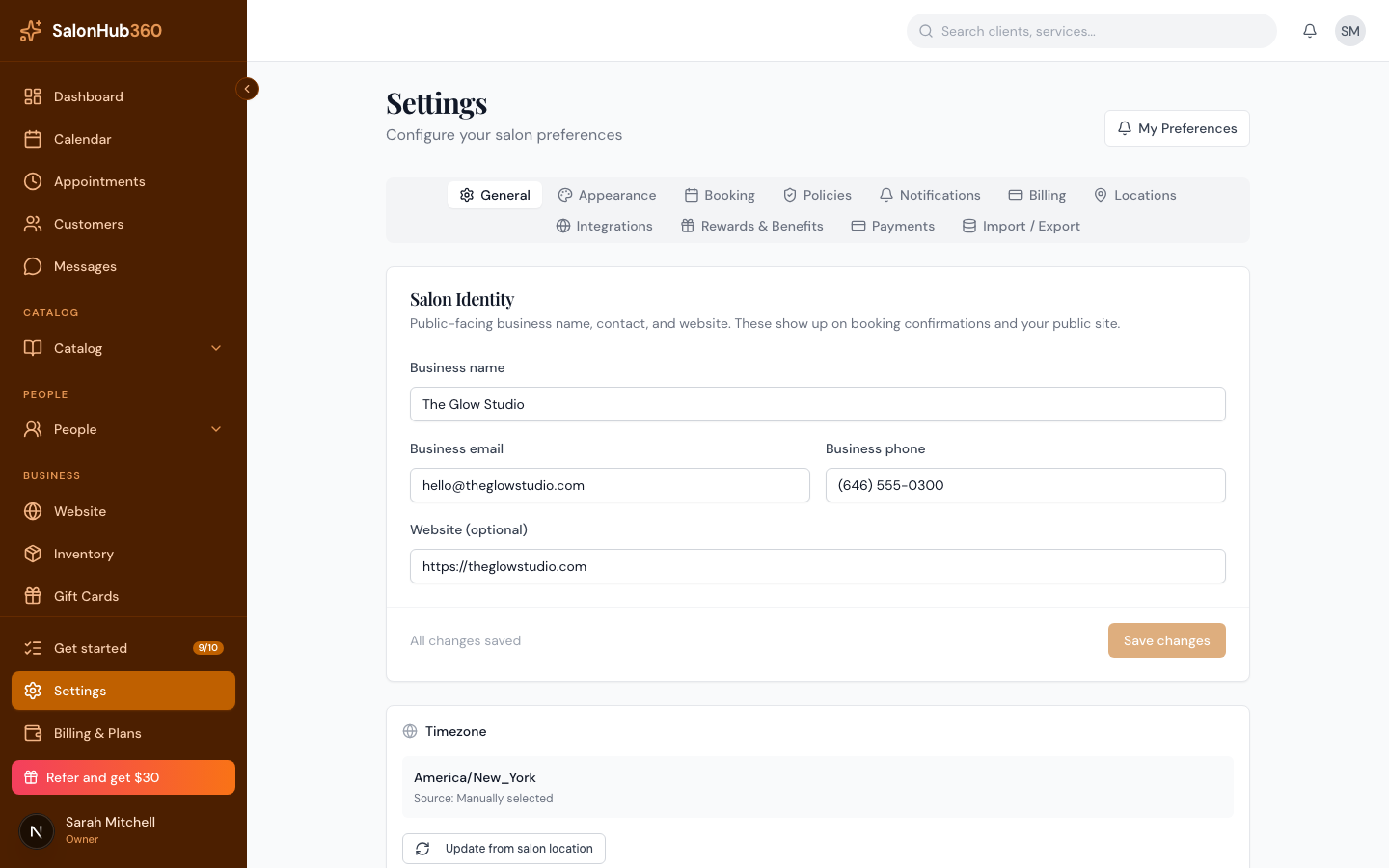
In the Booking rules card, turn on Allow online booking. This is the master switch for your public booking page — when it's off, clients can't book online at all.
-
Set your timing rules in the fields below. Each one controls a different part of how clients can book:
Setting What it does Default Minimum lead time (minutes) How far in advance a client must book. Blocks last-minute slots. 60 Maximum future booking window (days) The farthest-out date a client can pick. 90 Same-day cutoff (HH:mm) Stops same-day bookings after this time. Leave blank to allow them all day. blank Cancellation/reschedule notice (hours) Minimum notice a client needs to cancel or reschedule online. 24 Slot interval (minutes) How tightly bookable start times are spaced (e.g. 15 = on the quarter-hour). 15 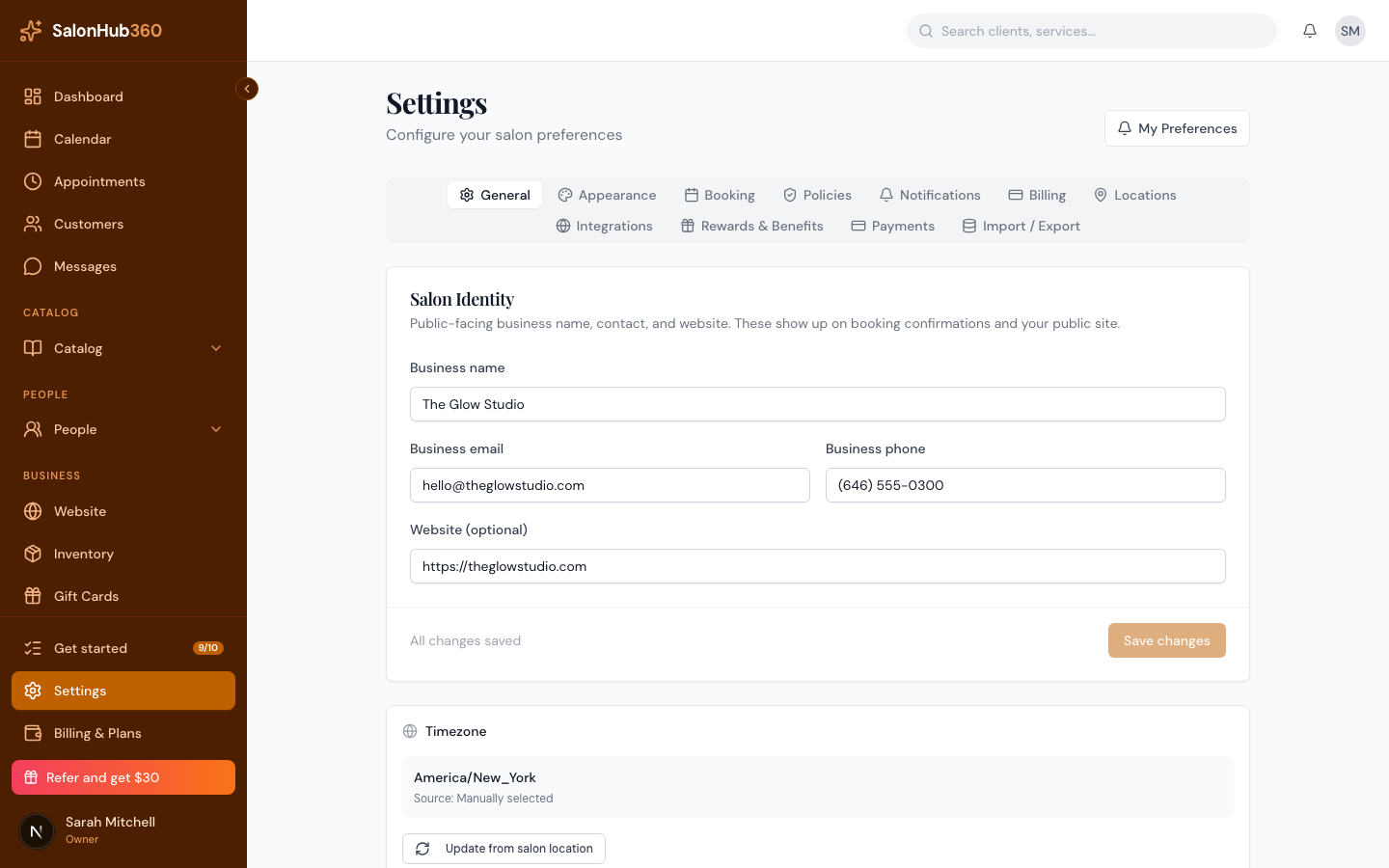
-
Click Save changes.
Note: Enter the same-day cutoff in 24-hour
HH:mmformat — for example,14:00for 2:00 PM. An invalid time won't save.
Tip: Want to review first-time clients before their booking is locked in? See Require approval for new clients.
Common questions & troubleshooting
Why isn't a staff member or time slot showing on online booking?
If a stylist or time slot doesn't appear on your public booking page, check these six settings in order:
- Weekly working hours: Open Staff → Edit → Schedule and verify the day is ticked as Working with the right start/end hours and break window.
- Service assigned to staff: Open Staff → Edit → Services and confirm the technician is assigned to perform the selected service.
- Location match: Open Staff → Edit → Schedule and verify the technician is assigned to that location (and that the location itself has open business hours under Settings → Locations).
- Accepts new bookings & Active status: On Staff → Edit → Details, confirm both Active and Accepts new bookings are ticked.
- Booking lead time, cutoff & buffer time: Under Settings → Booking, check whether Minimum lead time, Same-day cutoff, or service buffer time is hiding near-term slots.
- Time-off or calendar blocks: Check the Calendar and Staff → Edit → Time Off for an approved time-off block or existing appointment covering that time.
Related articles