Create a membership
Requirements
- Available on: Starter and above
- Device access: Web & mobile browser
- Permission: Owner or Manager
Memberships turn services into a recurring plan — clients pay every period and get a set of service credits to use, like a monthly "Glow Club." You can build and manage plans now; charging members on a recurring schedule turns on with SalonHub360 Payments.
How to create a membership
-
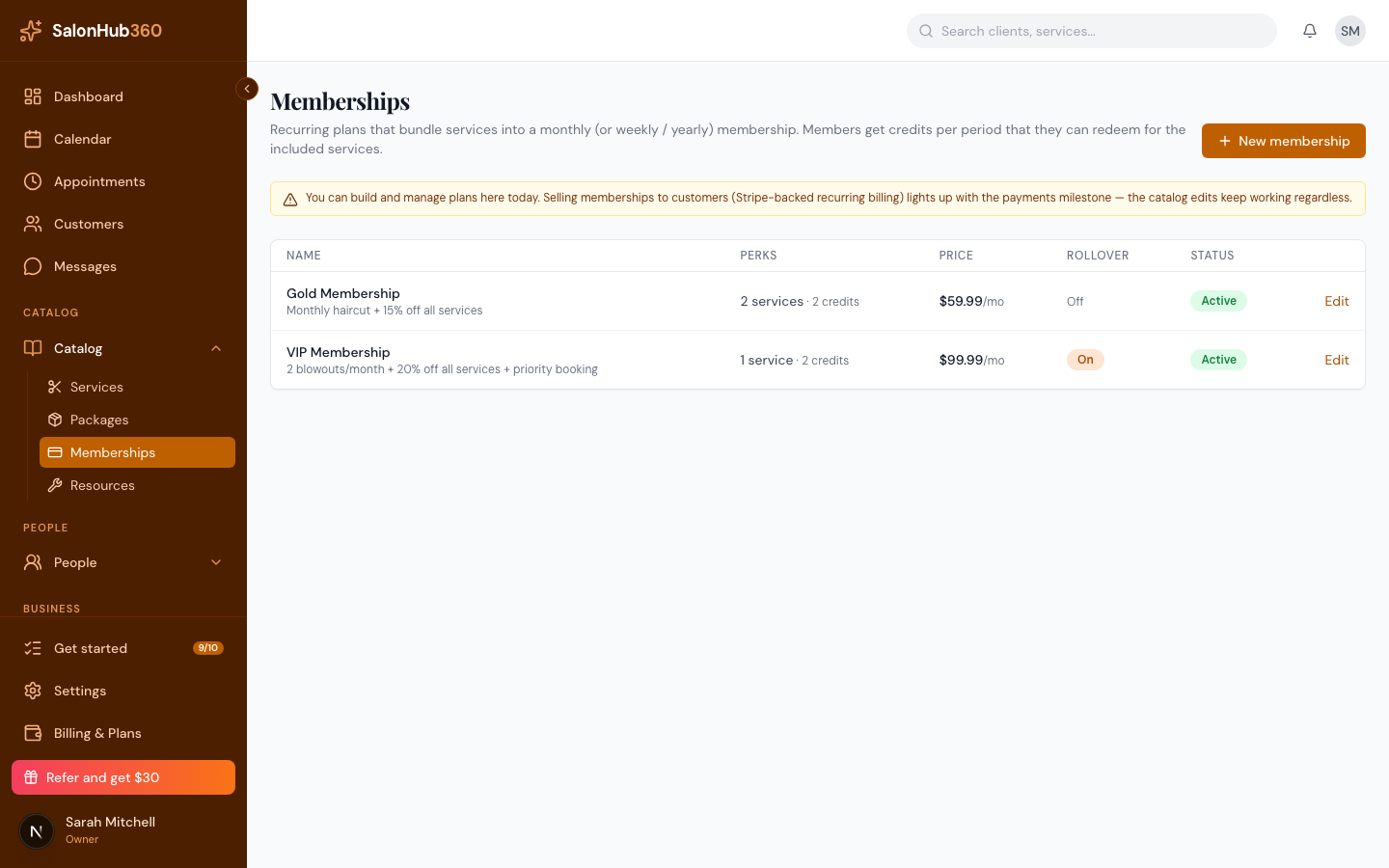
In the left menu, open Memberships (under Catalog), then click New membership.
-
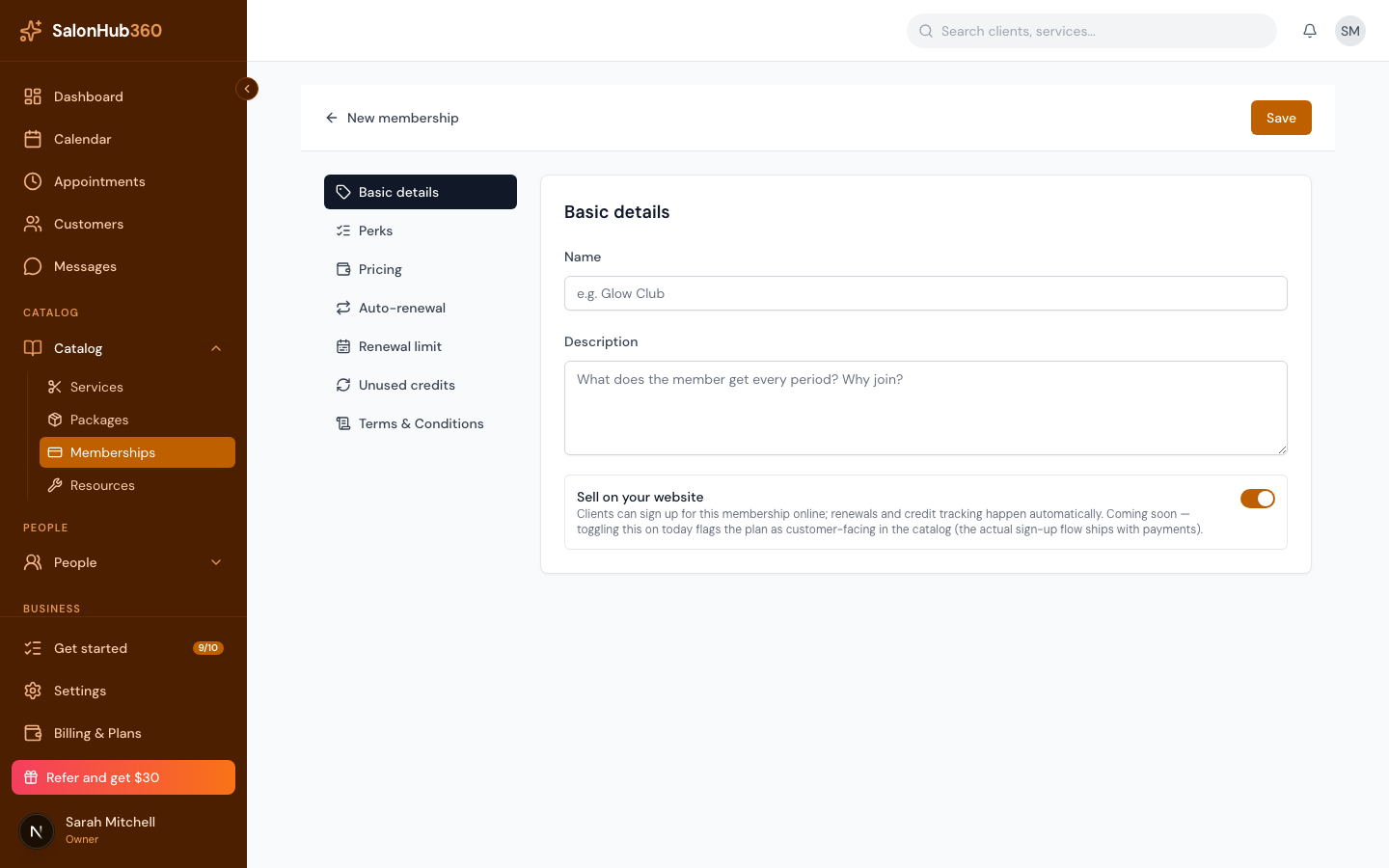
In Basic details, enter a Name and Description.
-
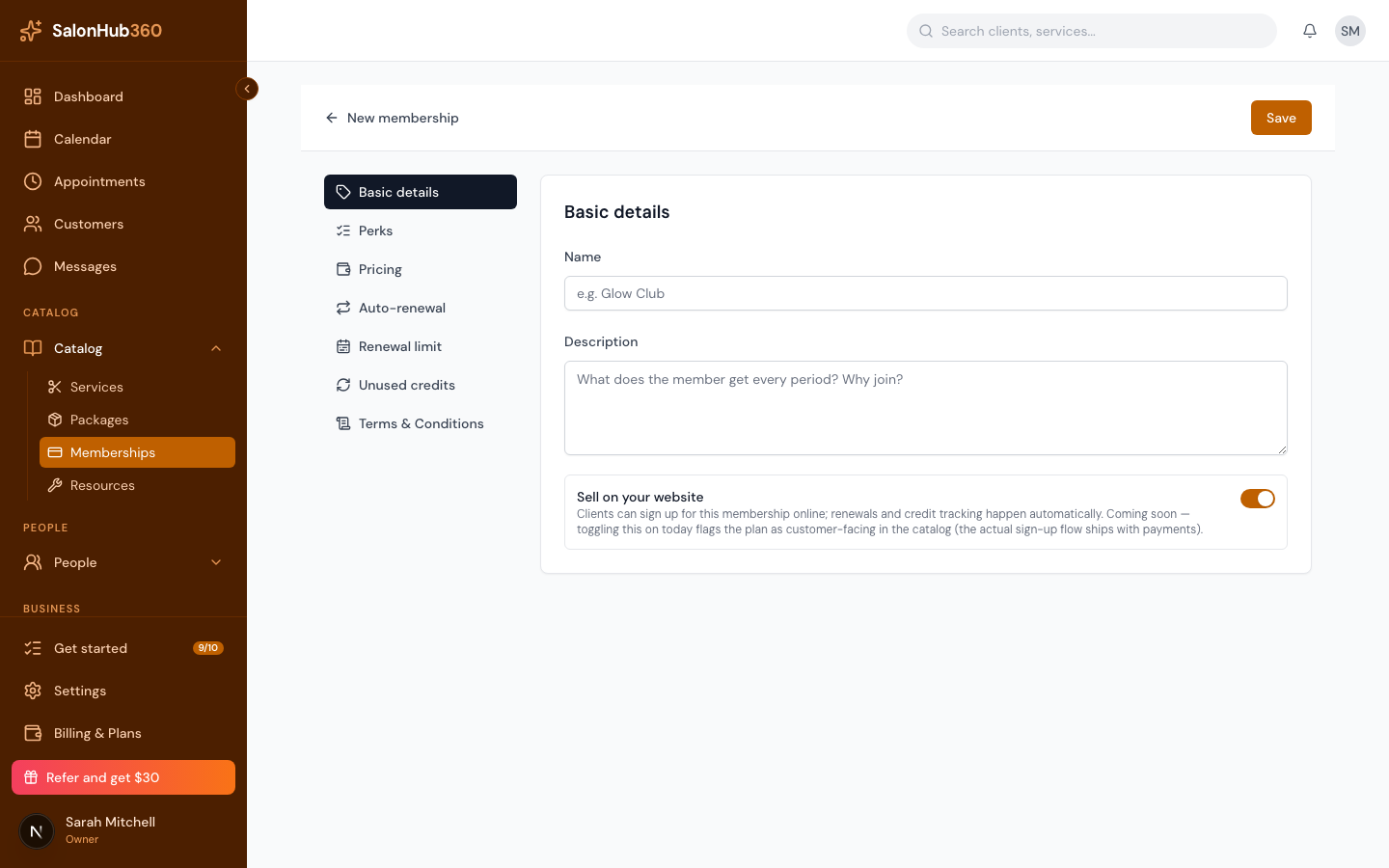
Open Perks. Pick a service from the dropdown and click Add, then set Credits / period — how many of that service the member gets each cycle. Add more services as needed.
-
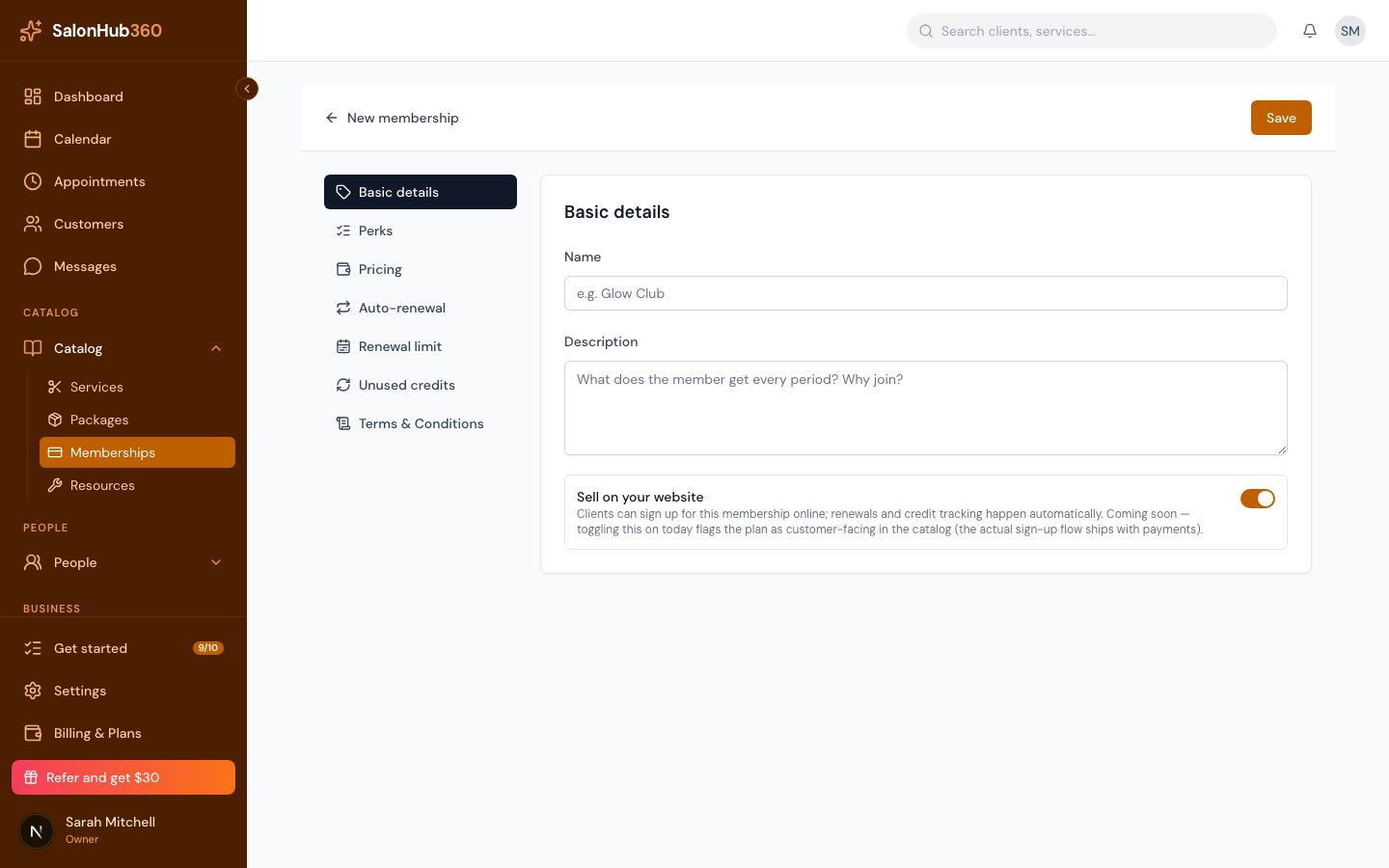
Open Pricing and set the Membership price charged each period. SalonHub360 shows the member's savings versus à-la-carte.
-
In Auto-renewal, choose the Time period — Weeks, Months, Quarters, or Years.
-
(Optional) Set a Renewal limit to cap how many times it renews, turn on Carry over under Unused credits to roll leftover credits into the next period, add any Terms & Conditions, then click Save.
Manage your memberships
Your memberships list shows each plan's name, perks (services and credits), price with its period, rollover setting, and status. Click Edit to change a plan — edits keep working whether or not Payments is live yet.
Note: You can build and manage plans today, but selling memberships requires SalonHub360 Payments. The in-app banner reads: "You can build and manage plans here today. Selling memberships to customers (Stripe-backed recurring billing) lights up with the payments milestone — the catalog edits keep working regardless." Set them up now; you'll be able to sell them once Payments is on.
Tip: For a one-time pre-paid bundle instead of a recurring plan, see Create a package.
Common questions & troubleshooting
What happens if a client's recurring membership card declines?
When a member's scheduled renewal charge fails (for example, due to an expired card or insufficient funds), SalonHub360 flags the subscription as Past due and pauses new credit grants until payment is recovered.
You can resolve declined renewals right from your dashboard without contacting support:
- In the left menu, open Catalog → Memberships → Recovery (the Membership Payment Recovery tab).
- Find the member's past-due subscription in the recovery queue to see the decline reason and last attempt timestamp.
- Choose an action:
- Click Retry charge to re-run the card on file immediately (if the client confirmed funds are available), or
- Click Send recovery link to email the client a secure self-service link where they can update their card and complete the renewal payment.
- Once payment succeeds, the membership returns to Active and the period's service credits unlock automatically.
Related articles